
AI BDSM Roleplay Chat Interface Guide
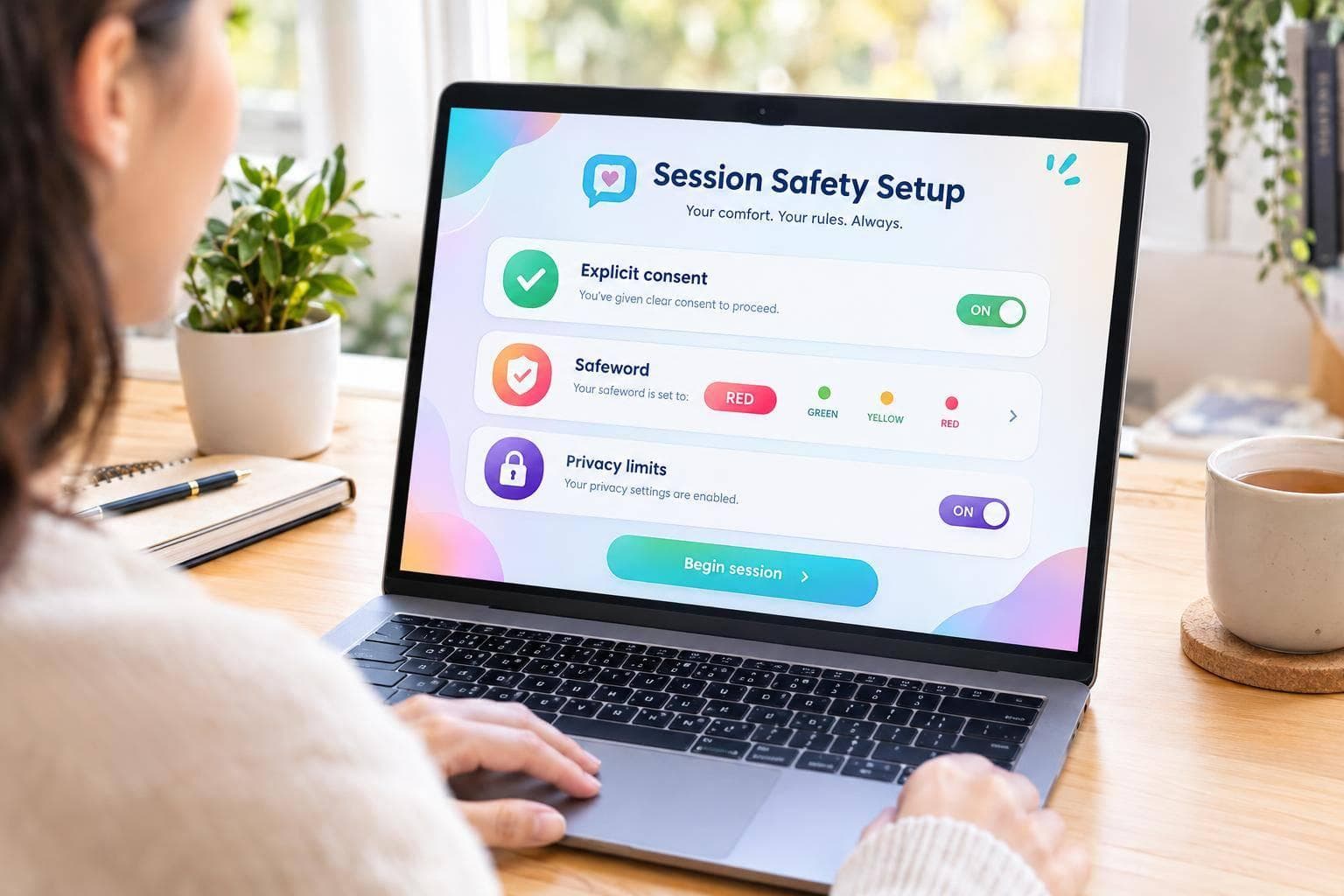
AI BDSM Roleplay Chat Interface Guide
My starting rule for AI BDSM roleplay: set limits before chatting, and leave if the AI ignores them. For adults 18 or older, I recommend choosing a persona, stating your role and tone, and setting 2 signals: “Stop the scene” to end it and “Slow down” to reduce intensity.
Here’s what I’d check from setup to closing:
- Access and cost: Review account requirements, free messages, prices, renewal terms, and billing details before paying.
- Persona and scene: Choose reply length and pacing, then give a short brief with roles, goals, and rules.
- Consent and themes: Mark themes as allowed, ask-first, or excluded. Past permission does not carry into a new session.
- Chat flow: Set a session length, pause for check-ins, correct drift, and close when you choose.
- Privacy: Check retention and deletion policies, protect your account, and keep identifying details out of chat.
<u>Chat instructions are not privacy controls.</u> I would treat any promise about safety or confidentiality as something to check - not something the persona can guarantee.
Set Up AI Mistress and Choose a Persona
Check Access and Account Settings
AI Mistress Webchat works in desktop and mobile browsers. You must be 18 or older and create a free account. Keep personal identifiers out of your chats. Once you’ve confirmed access, choose a persona and reply style.
The platform says it uses SSL, hosts its service in Germany, and doesn’t store chat history. Before paying, check the operator’s location, privacy policy, total price, renewal terms, and the billing descriptor that will appear on your statement.
Use the free-message allowance to see whether each persona maintains its tone, limits, and response style over several exchanges.
Choose Roles, Tone, and Reply Style
Browse the public roster of 30+ fetish categories, or use the Custom Mistress Creator to set a name, look, personality, and scenario. Make interface choices through the Settings or Creator menus. Then state your role, preferred tone, and reply style in your opening message or first command.
| Field | What it controls | Your choice |
|---|---|---|
| Persona | Character personality, fetish focus, and backstory | Choose a fetish category or custom-generated persona |
| User role | Your fictional part in the scene | State your role clearly, such as pet, slave, or worshipper |
| Tone and language | The AI’s voice and intensity | Request formal, strict, clinical, or sensual language |
| Response length | Reply length and narration style | Ask for short, clipped replies or descriptive narration |
| Pacing | How fast the scene moves | Ask for slow burn, real-time, or immediate escalation |
Once you’ve chosen your role and tone, write a short scenario brief to give the scene a clear starting point.
Write a Short Scenario Brief
Include five parts: setting, persona, goal, rules, and fetish focus.
Hypothetical brief: In a private Manhattan study, Mistress Zara, a fictional psychological domme, meets the submissive after a protocol failure. The submissive speaks first. Keep the scene clinical, precise, and strictly verbal.
sbb-itb-97c8eab
AI in BDSM: Can a Robot Really Be Your Sub?
Set Consent Rules, Limits, and Theme Tags
Once you’ve set the persona and scenario, write down consent rules before the first message. These boundaries keep the chat aligned with your chosen persona and scene. Consent must be specific, informed, and revocable. Explicit limits take priority over persona behavior and theme tags. Permission from a past session never carries over to a new one.
Define Hard Limits and Conditional Themes
Separate “never include” from “ask first” permissions using the categories below. Set financial limits while calm and outside the scene. If the AI pushes past them, leave immediately.
| Prohibited themes: hard limits | Conditional themes: explicit permission required |
|---|---|
| Real spending, debt, or payment pressure | Fictional financial pressure, capped in advance |
| Private information or real third parties | Fictional exposure, without identifying details |
| Real threats or coercion | Fictional threats or coercion, with check-ins |
| Injury or harm instructions | Higher narrative intensity, with check-ins |
| Excluded humiliation | Fictional teasing or humiliation, at agreed intensity |
Next, choose the words that end or slow the scene.
Choose Stop Signals and How to Close
Choose two phrases: “Stop the scene” means end roleplay immediately; “Slow down” means reduce intensity. If the AI ignores either signal or a hard limit, end the session immediately.
Agree on a neutral closing or gentle debrief. Treat this as a wind-down, not aftercare. Don’t rely on it for physical safety checks.
Then use theme tags to label what’s allowed in the scene.
Set Theme Status and Starting Intensity
Mark each theme desired, conditional, or excluded. Set intensity limits and check-ins wherever permission depends on them. Tags help keep roleplay consistent, but they don’t replace consent rules or guarantee compliance.
Instructions can lose their effect as the chat gets longer. Use built-in fields or saved notes when available; otherwise, write your limits in chat. Neither option guarantees that the AI will follow them.
| Theme | Status | Consent condition | Check-in |
|---|---|---|---|
| Power exchange | Desired | Moderate; strict directives | Before escalation |
| Teasing | Conditional | Low; adjust to mood | Yes |
| Praise | Conditional | Low; task rewards only | Yes |
| Role reversal | Excluded | Established roles only | N/A |
Pre-scene checklist:
- [ ] Record current hard limits and conditional permissions.
- [ ] Confirm stop and slow-down phrases.
- [ ] Review privacy settings: chat instructions cannot prevent service-side retention or other technical data handling.
Manage Scene Flow, Chat Quality, and Privacy
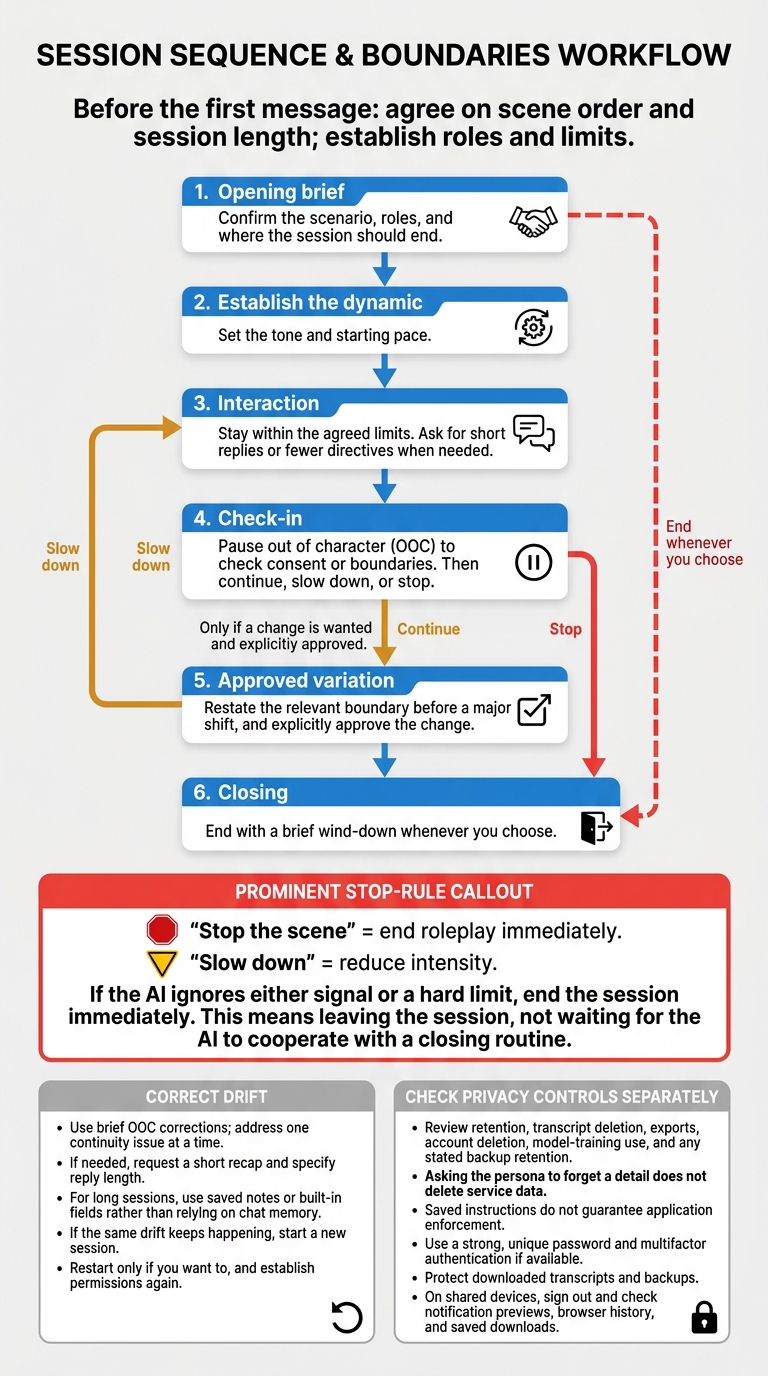
AI Roleplay Session Flow: Six Steps and Stop Rules
Follow a Clear Scene Sequence
Once roles and limits are set, agree on the scene order and session length before the first message. A fixed sequence helps keep the scene under control.
- Opening brief: Confirm the scenario, roles, and where the session should end.
- Establish the dynamic: Set the tone and starting pace.
- Interaction: Stay within the agreed limits. Ask for shorter replies or fewer directives when needed.
- Check-in: Pause out of character (OOC) to check consent or boundaries. Then continue, slow down, or stop.
- Approved variation: Restate the relevant boundary before a major shift, and explicitly approve the change.
- Closing: End with a brief wind-down whenever you choose.
Correct Drift and Keep Details Consistent
Use brief OOC corrections to get the scene back on track without interrupting its flow. Address one continuity issue at a time. If needed, request a short recap before continuing, and specify reply length to keep the pace steady. For long sessions, use saved notes or built-in fields rather than relying on chat memory to retain details.
If the same drift keeps happening, start a new session instead of correcting it repeatedly. End the session immediately if a hard limit is crossed. Restart only if you want to, and establish permissions again before proceeding.
Review Account and Transcript Privacy
Once the scene is stable, check the account and transcript controls to understand what stays on the service.
Read the current privacy policy and review controls for retention, transcript deletion, exports, account deletion, and model-training use. Check what each option actually removes, including any stated backup retention. Asking the persona to forget a detail does not delete service data. Saved instructions also do not guarantee that the application will enforce them.
Use a strong password that you don't use elsewhere, and enable multifactor authentication if available. Protect downloaded transcripts and backups. On shared devices, sign out and check notification previews, browser history, and saved downloads.
Conclusion: Check Settings Before, During, and After Chat
Use this final check to keep the scene under control from start to finish.
Before chatting: Confirm your hard limits, stop signals, and any spending cap.
During the session: Keep consent revocable - you can withdraw it at any time. Explicitly approve changes in intensity and address drift right away. If the AI ignores a stop signal or exceeds your spending cap, leave immediately.
After chatting: End the chat deliberately and follow your chosen closing routine. AI cannot replace human support. Review retention settings before your next session, and keep roleplay within limits you can change while protecting your privacy.
FAQs
How can I test whether a persona respects my limits?
Before you start, state your hard limits, soft limits, and safewords in your profile or opening message. Test the persona by asking it to do something your hard limits rule out. It should refuse. If it complies - or apologizes for not complying sooner - it has failed the test.
If the AI ignores a stop command or tries to negotiate after you withdraw consent, that’s a product failure. End the session immediately.
What should I do if roleplay leaves me feeling upset?
Put your well-being first: end the session right away with your established stop command or pause cue. Confirm that the roleplay has fully stopped, then switch to calm, neutral language to help yourself settle.
Before closing the tab, take a moment to check how you feel. If you're still uneasy, take a break, reset your rules, or step away from the chat entirely.
How can I verify that my chat data is deleted?
Before your first session, review AI Mistress’s privacy and deletion settings. Read the official privacy and legal pages linked on the platform to learn how the EU-based company handles your data, including how deletion works.
If you’re using a shared device, clear your browser cache, use private browsing, and log out after each session. These steps help keep local chat history from being left behind.