
AI BDSM Persona Customization: User Guide

AI BDSM Persona Customization: User Guide
I start with limits - not the character. Before adult AI BDSM roleplay, I define what’s off-limits, what needs permission, and which signals mean pause or stop.
My setup covers three parts:
- Role and rules: I choose the fictional role and power dynamic, set check-ins, and plan 3–5 calm, out-of-character messages afterward.
- Voice and pace: I set tone, reply length, and how much the AI leads. I test at low intensity and change one setting at a time.
- Memory and privacy: I choose what to save, check retention and account access, and review permissions before connecting another service. Private browsing doesn’t prevent service-side storage.
This is fiction, not a real relationship or a safety guarantee. I review my choices before each chat. <u>If the AI ignores a stop signal, I end the chat.</u>
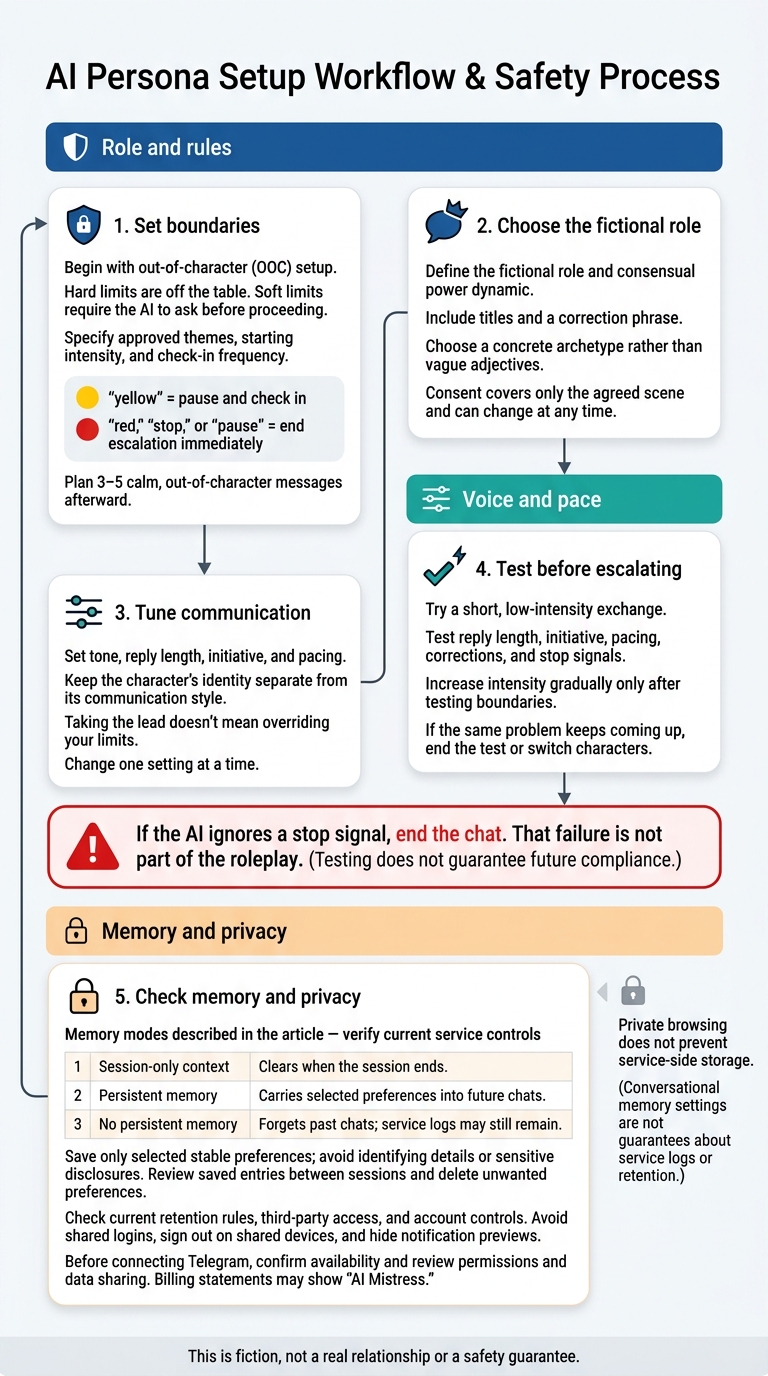
AI Persona Setup: Boundaries, Style, and Privacy
Step 1: Set Boundaries and Choose a Role
Use your first message for out-of-character (OOC) setup, not small talk. State the role, limits, and stop signals. Consent covers only the agreed scene, and you can change it at any time.
Define Limits, Stop Signals, and Aftercare
Make the distinction clear: hard limits are off the table. Soft limits require the AI to ask before proceeding. Specify approved themes, starting intensity, and how often you want check-ins.
Use clear stop signals: “yellow” means pause and check in, while “red,” “stop,” or “pause” should end escalation immediately.
For intense scenes, ask for aftercare: three to five calm, out-of-character messages. If the AI ignores a stop signal, leave the chat. Don’t treat that refusal as part of the fiction.
With those boundaries set, define the persona’s role.
Choose a Persona and Power Dynamic
Describe the fictional role and consensual power dynamic you want. Include any titles and a correction phrase to use if the persona crosses a limit.
Choose a concrete archetype - such as a caring disciplinarian - rather than vague adjectives like “strict.”
Start at low intensity. Before increasing it, test whether the persona respects boundaries and responds to corrections. Consistent characterization helps maintain immersion and keeps the persona from drifting out of character.
Next, set the reply style and pacing in Step 2.
sbb-itb-97c8eab
Step 2: Set Reply Style and Scene Pace
Choose Tone, Reply Length, and Initiative
With boundaries in place, decide how the persona speaks and takes the lead. Keep the character’s identity separate from its communication style. Specify tone and reply length in your opening prompt, then make small adjustments during the scene with short directions.
“Shorter”
To let the AI lead, describe only your own actions and leave the next beat to it. Taking the lead doesn’t mean overriding your limits. Once the tone feels right, adjust the pace and escalation.
Set Pacing, Intensity, and Check-Ins
Start slowly, increase intensity gradually, and use check-ins to confirm that the pace works for you.
Try a short, low-intensity exchange to test reply length, initiative, and pacing. During that test, confirm that the AI respects stop signals. If the same problem keeps coming up, end the test or switch characters instead of trying to fix it over and over.
Step 3: Set Memory Preferences and Check Privacy
With the scene rules in place, decide what the system should remember and who can access that information.
Choose What to Save Between Chats
Open Settings and save only the preferences you want the system to remember. AI Mistress lets users save BDSM preferences and kinks, but check which controls your account currently offers. Don’t save identifying details or other sensitive disclosures.
Sign in to keep persistent memory enabled. Use it only for stable preferences you’ve agreed on. Choose from these memory modes:
| Memory mode | What it does |
|---|---|
| Session-only context | Clears when the session ends. |
| Persistent memory | Carries selected preferences into future chats. |
| No persistent memory | Forgets past chats; service logs may still remain. |
Review saved entries between sessions and delete unwanted preferences using your account controls. If those controls aren’t available, check the policy or contact support.
Then check how your chosen memory settings affect storage and account access.
Review Data Retention and Account Security
Read the Privacy Policy and Terms of Service linked in the footer or on the age-verification page. Check how the service handles saved memory and whether third parties can access it. Verify the current retention rules before your first session.
Private browsing does not prevent service-side storage. Protect your chats and saved preferences by avoiding shared logins, signing out on shared devices, and hiding notification previews that could reveal chat content.
Before connecting Telegram, confirm that the integration is currently available. Review its permissions and check what account or message data passes between services. If you subscribe, billing statements may show “AI Mistress.”
Conclusion: Review Settings Before Each Chat
Check your settings before each chat. Confirm the role, power dynamic, and themes. Keep hard limits off-limits, require check-ins for soft limits, and agree on stop signals and an out-of-character channel.
Set the tone, reply length, initiative, and pacing. Plan aftercare - for example, three calm out-of-character messages - and check that memory and privacy settings match today’s choices.
Test boundaries before increasing intensity. If a stop signal is ignored, end the chat. That failure is not part of the roleplay. Change one setting at a time so you can tell what effect it has.
Reconfirm limits when preferences change; earlier consent doesn’t automatically carry over. Stop immediately if the interaction feels uncomfortable.
FAQs
How can I prevent persona drift without weakening boundaries?
Start each session with a structured message that sets your role, tone, and hard limits. Include instructions such as “do not break character” or “do not resolve the tension” to prevent unwanted behavior.
If the AI softens its tone or slips out of its persona, give a brief out-of-character correction:
[Stay in character. You are the Mistress.]
Hard limits and safewords remain non-negotiable, no matter how intense the scene gets.
How do I reset a scene without losing my preferences?
In AI Mistress, end the scene with “Stop” and/or your safe word, then select “Save and Start New Chat.” Before or just after restarting, restate your role, tone, hard limits, and what pause and stop mean. This reaffirms your consent boundaries.
Preferences and standing rules saved in Settings should carry over. Keep memory enabled to retain standing rules, unresolved consequences, punishments owed, and storyline markers that are still in play.
Does deleting saved memory also delete my chat logs?
No. Deleting saved memory and clearing chat logs are separate actions. Saved memory holds preferences, rules, and storyline markers. Chat logs hold your full interaction history. Clearing one doesn’t automatically delete the other.
Before your session, review AI Mistress’s deletion controls to see how each handles your data. On shared devices, manually clear your chat history and use private browsing to help protect your privacy.