
How AI Syncs Toys with Domme Chat
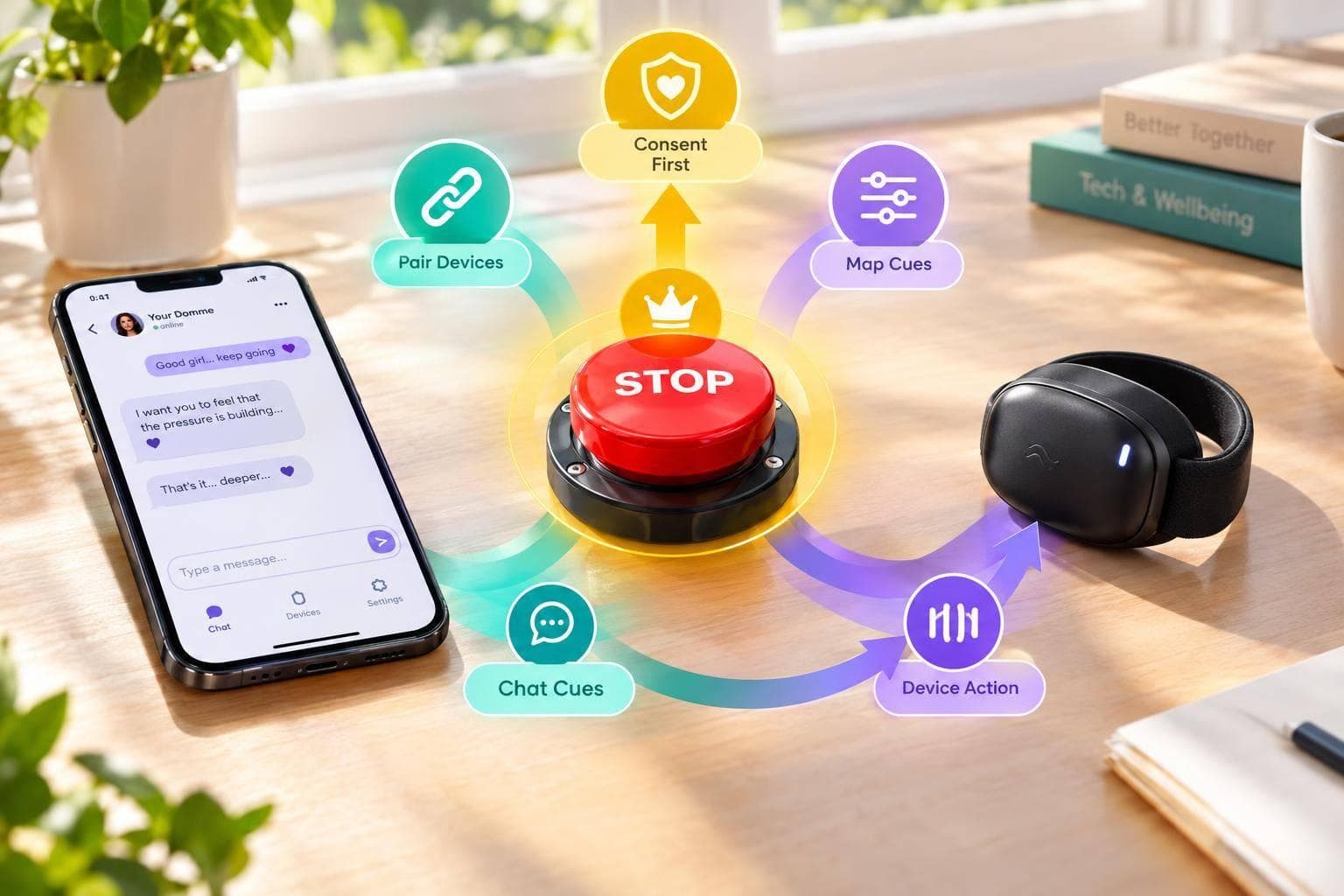
How AI Syncs Toys with Domme Chat
I use AI chat for cues - not direct toy control. With AI Mistress Webchat, I make each device change myself unless a documented integration supports it. Closing the chat does not turn off the toy.
I keep the setup to four steps:
- Pair and test: Use the official app, check device support, limit permissions, and test both app stop and hardware power-off.
- Set cue rules: Allow one pending action at a time, confirm every change, and pause when messages lag or connections fail.
- Write the limits: Define allowed actions, boundaries, stop signals, and check-ins. Remote access is not consent.
- Stop and shut down: Stop the hardware before troubleshooting, cancel queued actions, revoke access, and confirm the device is off.
My rule: <u>physical controls and my decision to stop always outrank the chat.</u>
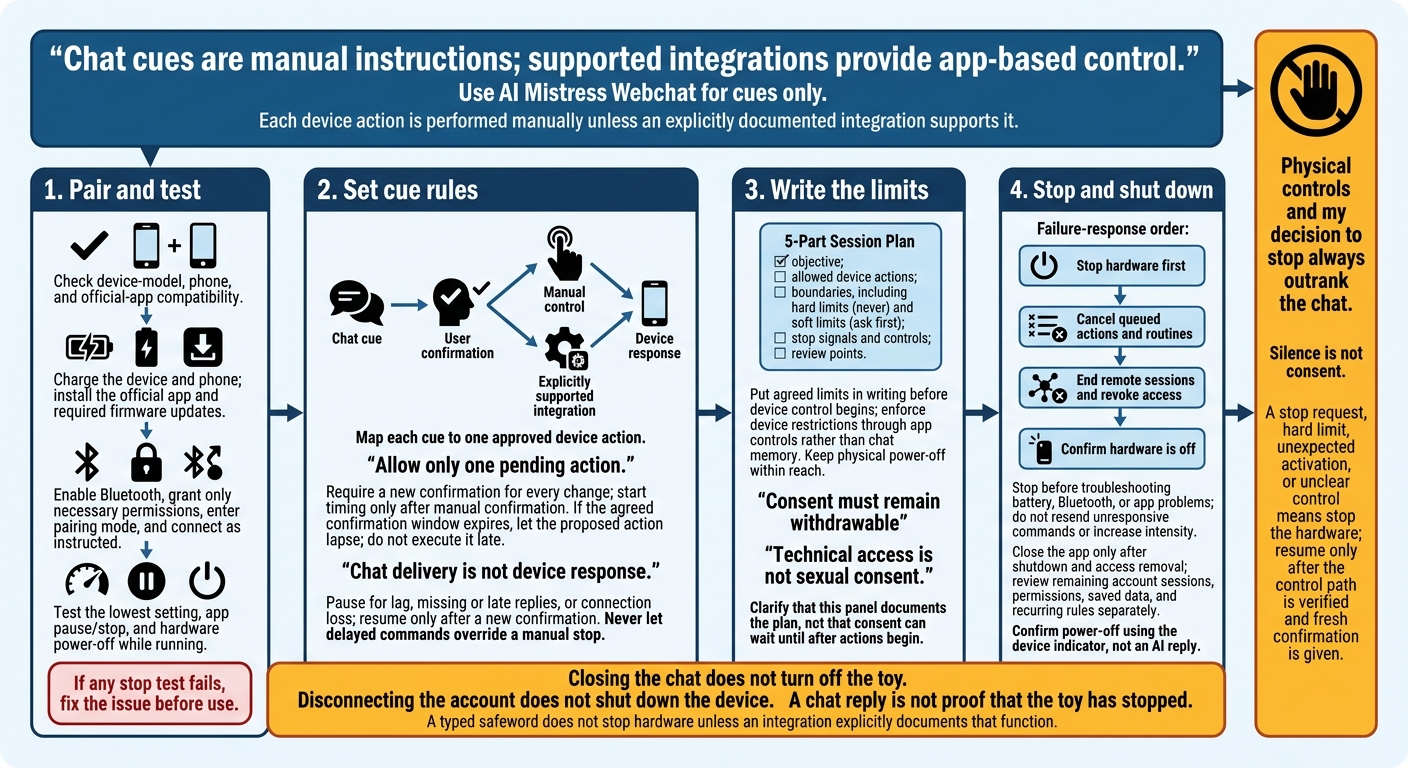
AI Chat and Toy Control: Safe Setup to Shutdown
1. Set Up and Pair Your Device
Once you’ve set your limits, pair the hardware you plan to use.
Check Device and App Support
Check the manufacturer’s compatibility requirements for your device model and phone.
Chat cues are manual instructions; supported integrations provide app-based control. Before assuming your device is connected, check AI Mistress Webchat’s Settings or Integrations menu for an explicit device-linking option.
Pair Using the Official App
Complete pairing through the official app:
- Charge the device according to the manual, and charge your phone.
- Install the official app and complete any required firmware update.
- Enable Bluetooth and grant only the permissions needed for pairing.
- Turn on the device and enter pairing mode using the button sequence in the manual.
- Connect as instructed, using in-app pairing if required.
- Test the lowest setting and confirm that pause and stop work.
- Test the hardware power button while the device is running. Confirm that it stops the device without relying on software commands.
For local Bluetooth control, test the app’s stop function without internet if the hardware supports offline use. If any stop test fails, fix the issue before use.
Limit Permissions and Protect Data
After pairing, allow only the access the toy needs.
| Permission | Status | Function |
|---|---|---|
| Bluetooth | Required for local control | Device connection |
| Nearby-device access | Required when requested by the OS | Discovery and connection |
| Location / location services | Required on some Android versions | Bluetooth scanning |
| Microphone | Optional | Audio features |
| Camera | Optional | QR pairing or video |
| Contacts | Unnecessary; keep disabled | Not needed for control |
| Photos / storage access | Optional | Media or evidence uploads |
Review permissions in your phone’s settings after pairing, and remove access you no longer need. Use only a screen name. Leave out legal names, employers, and IDs.
sbb-itb-97c8eab
2. Match Chat Cues to Device Actions
Once the device is paired, link each chat cue to one approved action. Use those mappings for prompts, punishments, edging, and reward loops.
Choose a Supported Control Method
Use AI Mistress Webchat for cues only. Unless a documented integration exists, carry out each action manually.
| Control method | Your action | Requirements | Stop method |
|---|---|---|---|
| Manual cueing | Read the cue, then operate the device | Manual controls or a supported app | App stop control or hardware power button |
| Supported app routines | Select and start a documented routine | App support for the routine | Documented app stop control |
| Verified integrations | Authorize the connection and confirm each action | Explicit service, device, and connection support | Documented stop control; keep physical shutdown available |
Before authorizing an integration, review its permissions, what it can control, and how to remove access. Check whether it can start actions, change settings, or run routines. Removing access may leave an action running: disconnecting the account does not shut down the device.
Set Timing and Confirmation Rules
Give each cue one meaning, and require a new confirmation for every change. Agree on a confirmation window before starting. If that window expires, let the proposed action lapse - don't execute it late. Start timing only after you manually confirm.
| Cue or event | Your action | Required safe device state |
|---|---|---|
| Ready | Confirm readiness; do not start yet | Standby; no active output |
| Confirm | Approve the current action through the supported control | Only the approved action begins |
| Pause | Use the app pause or stop control | Output stopped; no new actions |
| Connection lost | Stop manually unless the device is already off or at minimum intensity | Off or minimum intensity; no automatic restart |
| Stop | Use the device stop control or power button; end the exchange | Off; session ended |
Chat delivery is not device response. During a timing check, record when the message arrives, when you confirm, and when the device responds. Don't assume the delay stays the same. Allow only one pending action so delayed or duplicate messages can't stack commands or accidentally increase intensity.
Check in before each new action. Pause if the app lags, replies go missing, messages arrive late, or the connection drops: silence is not consent. Resume only after a new confirmation. Never let a delayed command override a manual stop. A typed safeword can guide the chat, but it won't stop the hardware unless the integration explicitly documents that function.
Keep these mappings in the session plan that follows.
3. Agree on Consent and Session Limits
Once control mappings are set, put them in a written scene plan. Consent must remain withdrawable, and boundaries must be clear before device control begins. Edging, punishment, and reward themes are optional chat frames - not permission for unrestricted device access.
Write a 5-Part Session Plan
Include five items in your plan: objective; allowed device actions; boundaries, including hard limits (never) and soft limits (ask first); stop signals and controls; review points.
Agree on a stop word and keep a physical power-off option within reach. Ask the AI to repeat your limits, but use app restrictions to enforce device controls.
Then define how chat cues map to each allowed action. Each action requires your confirmation.
Set Limits for Prompts, Punishments, and Rewards
Specify which prompts and reward language you welcome, along with the device actions they may suggest. State whether punishment or edging themes are chat-only. Any change outside the agreed scope requires new confirmation.
Keep Remote Access Separate from Consent
For shared or remote control, write down who can act and when, where use is allowed, and whether queued actions may continue. Before granting access, identify how to revoke it.
Technical access is not sexual consent, and chat suggestions do not grant device authority. If the AI resists a stop request or boundary, end the session. Treat that behavior as a malfunction, not part of the scene.
Plan Check-Ins and Session Closure
Pause whenever comfort or permission is unclear. Stop immediately after a stop request or when a hard limit is reached.
At the end of the scene, check comfort and allow a brief wind-down. End remote access, power off the device, and confirm it is off.
4. Fix Connection Problems and Shut Down
If control fails, stop the hardware first, then revoke access. Treat a glitch or disconnection during a scene as a device-control problem first.
Stop Before Checking Problems
If the device activates unexpectedly, immediately press its hardware power button or use the app’s stop control. A chat reply is not proof that the toy has stopped.
If the device stops responding, pause commands. Don’t resend them or increase their intensity: repeated commands can queue unwanted actions that run after reconnection. Once the device is off, check the battery, Bluetooth connection, and app status.
If chat or internet fails, stop the device, clear queued actions, and end any active routines. Check the device’s state before reconnecting or resuming.
Remove Access and Confirm Shutdown
When a scene ends or fails, remove access completely. Cancel routines, end remote sessions, and revoke access. Then power off the hardware and close the app. Closing the app or tab alone may leave access active.
Check account settings for any remaining sessions and permissions. Review saved data and recurring rules separately; revoking access doesn’t necessarily delete them.
Before the next session, test what happens when the device loses its connection while idle. Check whether it stops, holds its last setting, or resumes after reconnecting. Use the device indicator - not the AI’s message - to confirm that power is off.
Conclusion: Keep Control Clear and Revocable
Once pairing, timing, and shutdown rules are set, you can still revoke control. Keep limits in your written plan and app settings. App controls - not chat memory - must enforce those limits and stops.
If control, timing, or consent is unclear, stop. Resume only after the control path is verified and you confirm again.
Your stop signal and physical controls always outrank the chat. Prompts, punishments, edging, and rewards must stay tied to consent, not automation.
FAQs
How can I verify an AI Mistress toy integration?
Check that the app stores and enforces your consent and scene rules, rather than just “remembering” them in chat. Use a controlled test to confirm that tasks, timers, consequences, and limit handling work consistently.
For AI Mistress, verify that you can set BDSM preferences and hard/soft limits in Settings. Check that those rules apply when chat starts and that “stop/pause” ends the exchange immediately.
How do I choose a safe cue confirmation window?
Agree on limits, expectations, and pacing during scene setup. Negotiating tone or intensity mid-session can cause distress. For AI-driven tasks, set a cue confirmation window that gives you enough time to complete the action comfortably, without feeling rushed or pressured.
If the pace makes you anxious or pushes past your comfort level, use your established safe word or pause command immediately to stop escalation. Then update your preferences for future sessions.
What if my toy’s stop controls fail?
If stop controls fail, treat it as a safety failure. Withdraw consent by using the scene’s “stop” command and any in-chat safe word. Then close the tab or leave the dynamic. AI must respect boundaries immediately. If it keeps escalating, that signals a malfunction.
Do not resume until the stop controls work. Ask for aftercare after an intense scene. Hard limits are off-limits. Soft limits call for check-ins, not continued control.